The control unit of the WeatherLox weather station is based on an ESP32. As firmware we use ESPEasy, extended by all plugins needed for the WeatherLox sensors – including the AS3935 lightning sensor. The ready-made image with firmware, configuration and rules is available for download on GitHub. If you like, you can also build the firmware yourself.
There are two ways to get the firmware onto the ESP32:
- Flash the ready-made image from GitHub – directly in the browser, without additional software. This is the easiest way.
- Build the firmware yourself – only necessary if you want to customise the firmware or use a newer ESPEasy version.
Flash the image from GitHub
Flashing is done with the ESP Tool from Espressif, the manufacturer of the ESP32. The tool runs entirely in the browser and transfers the image to the ESP32 via USB.
What you need
- the ESP32 board of the control unit
- a USB data cable (pure charging cables do not work)
- a PC with Chrome, Edge or Opera. Firefox and Safari do not support access to the serial port (Web Serial).
Step 1: Download the image
On GitHub, open the folder firmware/v0100/bin. It contains two files. You need the file whose name ends with _full.bin, currently WeatherLox_20261018_custom_ESP32_4M316k_full.bin. Click on the file and download it using the download icon on the right.
The full file is a complete image of the flash memory (4 MB): bootloader, partition table, firmware and the file system with the WeatherLox configuration and the rules. The file without “_full” in its name contains only the firmware. It is meant for later updates via the web interface of the ESP32 (OTA update).

Step 2: Connect the ESP32
Connect the ESP32 to the PC via USB. It registers as a serial port, usually as “CP210x USB to UART Bridge” or “CH340”. If it is not recognised, the appropriate USB driver is missing. You can find the drivers and instructions at Espressif.
Step 3: Open the ESP Tool and connect
Open the ESP Tool at https://espressif.github.io/esptool-js/. You can keep the preset baud rate of 921600. Click on Connect (1). The browser shows a list of serial ports. Select the ESP32 there and click on Connect.
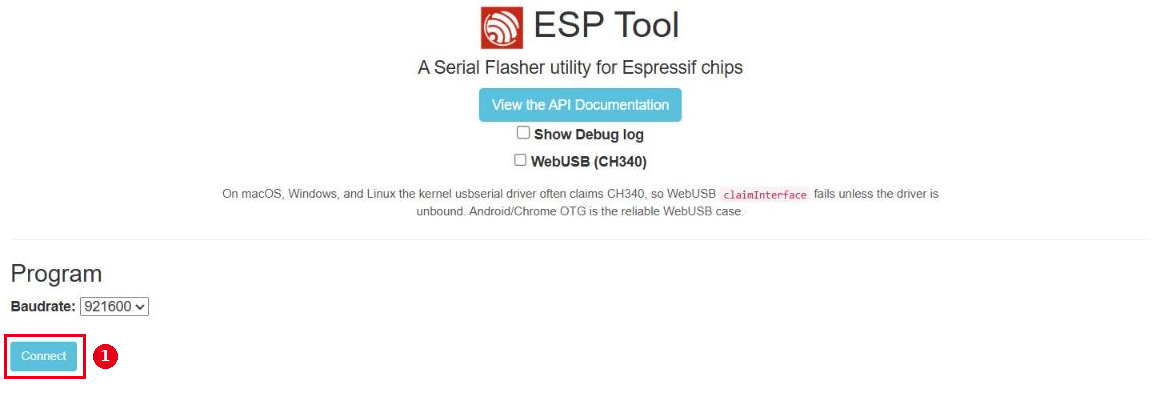
If the connection does not work, hold down the BOOT button on the ESP32 board while clicking Connect and release it as soon as the connection is established. If that doesn’t help either, set the baud rate to 115200.
Step 4: Flash the image
After connecting, the ESP Tool shows the detected chip and below it the flashing area:
- Flash Address (1): The default is
0x1000. Change the value to0x0. The full file starts with the bootloader and therefore has to be written from address 0. - Choose file (2): Select the
_full.binfile downloaded in step 1. - Program (3): Starts the flashing process. Flash Mode, Flash Frequency and Flash Size remain at their default settings.
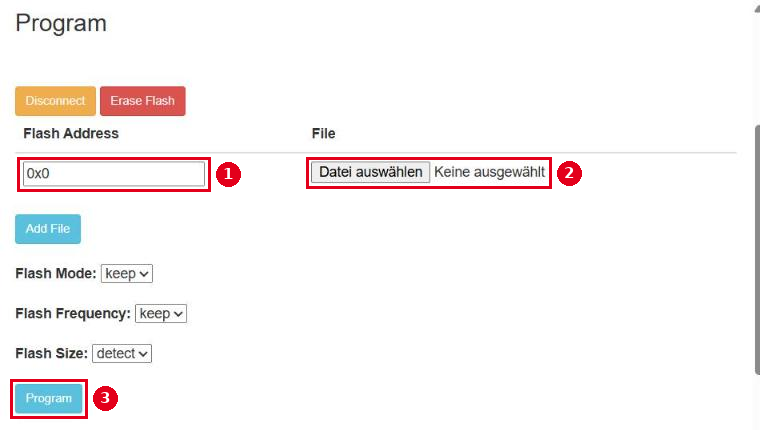
The progress is shown in the console below the form. Flashing takes a few minutes. The full file overwrites the complete memory, including any previously installed firmware and all old settings. If you have used the control unit before, note down your settings from rules1 first.
Once the process is complete, click on Disconnect and restart the ESP32 by briefly disconnecting it from USB or pressing the EN (reset) button.
Step 5: First start
After the restart, the ESP32 opens its own WiFi named “weatherlox”. How to connect the control unit to your WiFi and set it up is described in the next chapter 2. Basic Configuration.
Build the firmware yourself
If you want to customise the firmware or use a newer ESPEasy version, you can build it yourself. With a little PC experience, this is not rocket science. The build is done with Visual Studio Code and the PlatformIO extension. The WeatherLox-specific settings are in the file Custom.h.
What you need
- the ESPEasy source code in version mega-20260720, on which the image is also based: https://github.com/letscontrolit/ESPEasy/archive/refs/tags/mega-20260720.zip
- Visual Studio Code: https://code.visualstudio.com/
- the WeatherLox file
Custom.h: Custom.h on GitHub - a ZIP program, for example 7-Zip
Step 1: Download the source code
Download the ESPEasy source code using the link above and unpack the ZIP archive into any directory.
Step 2: Set up Visual Studio Code
Install Visual Studio Code and start it. On the left, open the Extensions (the icon made of four squares, one of which sticks out). Search for the following extensions one after the other and install them with the blue Install button:
- C/C++ Extension Pack (by Microsoft) – automatically also installs the C/C++ extension
- PlatformIO IDE (by PlatformIO)

The installation takes a while. You can see the progress in a small window at the bottom right. Then restart Visual Studio Code once.
Step 3: Open the project
On the left, open the Explorer and click on Open Folder. Select the directory with the unpacked source code, namely the one containing the subdirectories src, lib, boards etc. Tick “Trust the authors of all files in the parent folder …” and confirm with Yes, …. PlatformIO now sets up the project. This also takes a few minutes the first time.
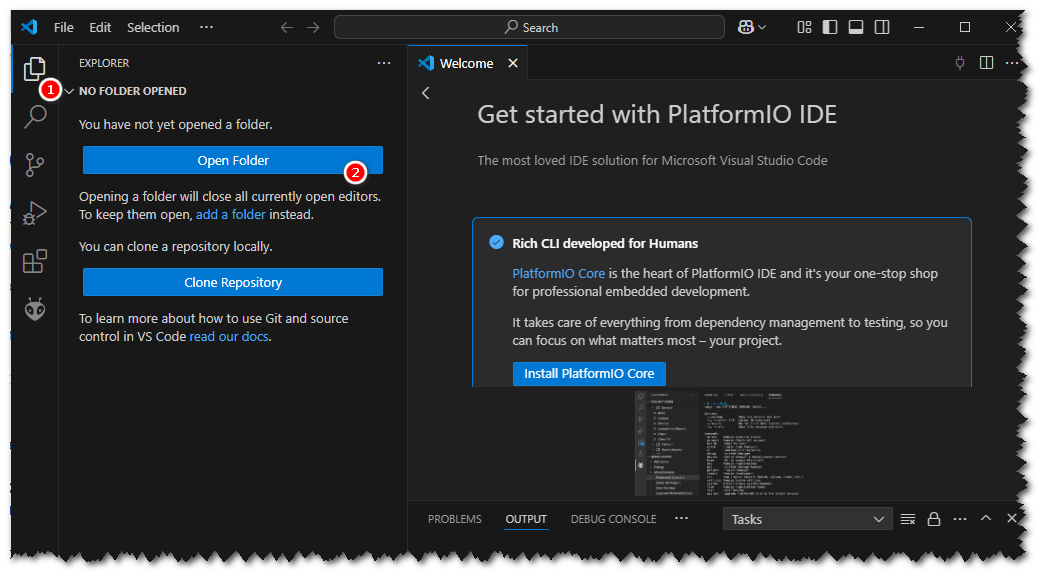
Step 4: Add the WeatherLox settings
Download the file Custom.h from GitHub (button “Download raw file”) and save it in the src directory of the source code. The file name must be exactly Custom.h.
The file defines which plugins and therefore which sensors are included in the firmware, including BME280, SHT3x, VEML7700 and the AS3935 lightning sensor. It also contains the WeatherLox defaults such as the device name, the WiFi password for the initial setup and the MQTT topics.
Step 5: Insert the fix for the rules update
This ESPEasy version contains a bug that makes downloading files from the server fail, and with it the automatic update of the rules (ESPEasy issue #5663). Until ESPEasy fixes it, a small correction is inserted before building. It is available as a patch in the GitHub folder firmware/v0100/build.
The easiest way is to do it by hand in Visual Studio Code: open the file src/src/Helpers/Networking.cpp, open search and replace with Ctrl+H and search for WiFiClient *stream = &client;. There are two matches, both are replaced by:
WiFiClient *stream = http.getStreamPtr(); if (stream == nullptr) { stream = &client; }
If Git is installed, the patch can also be applied in the terminal of Visual Studio Code in the source code directory: git apply ESPEasy_download_stream_fix.patch
Step 6: Build the firmware
On the left, select PlatformIO (the icon with the little alien). Under Project Tasks you will see a long list. Each entry is a firmware variant that can be built. All variants starting with custom_ use the Custom.h you just added. Expand the variant custom_ESP32_4M316k. The list is not sorted alphabetically.
4M stands for 4 MB flash memory, 316k for the size of the file system. When expanding it for the first time, PlatformIO works for a while and then collapses the entry again. Expand it again and click on Build under General.
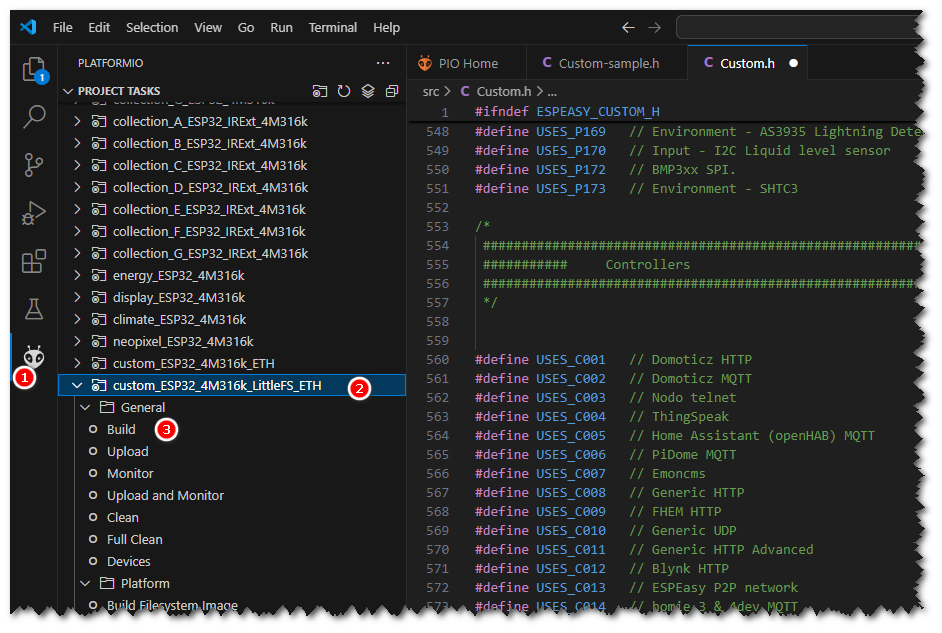
Building takes quite a long time the first time, because PlatformIO first downloads the necessary tools. At the end, the message SUCCESS appears in the terminal at the bottom.
Step 7: Flash the firmware
The finished firmware is located in the directory build_output/bin. For the initial installation you need the file ending with .factory.bin. It contains bootloader, partition table and firmware, but no configuration yet. Flashing works exactly as described above from step 2 of “Flash the image from GitHub”, also from address 0x0, just with the .factory.bin file instead of the full file.
Step 8: Load configuration and rules
The self-built firmware starts with the ESPEasy default settings. You then load the WeatherLox configuration and the rules, which calculate the weather data from the measured values, via the web interface of the ESP32. First set up the WiFi as described in 2. Basic Configuration under “Step 1: Set up WiFi” and log in to the web interface.
Download these files from the GitHub folder firmware/v0100/build:
config.dat– the configurationrules1.txttorules4.txt– the rulesjson.keys– keys that the rules need to read web servicesprovisioning.dat– the address of the WeatherLox server for the automatic updates of the rules
Install the configuration: Open the Tools tab and click on Load in the Settings section. Under “Upload settings file”, select the file config.dat and click on Upload. Then restart the ESP32 with Reboot now. Your WiFi credentials and the password of the web interface are retained, as they are not stored in config.dat.
Install the rules: Open the Rules tab. At the top, select Rules Set 1, replace the content of the text field with the content of rules1.txt and click on Save. Repeat this for Rules Set 2 to 4 with the files rules2.txt to rules4.txt.
Load json.keys and provisioning.dat: In the Tools tab, open the File browser and click on Upload. Select the file json.keys and upload it, then do the same with provisioning.dat. The file names must remain unchanged.
Finally, restart the ESP32 via Tools → Reboot. Then continue with 2. Basic Configuration from “Step 2: Set the time”.
Continue with 2. Basic Configuration →